The Git client only my mom understands
Satisfied with the first implementation of cherry picking in Retcon, I sent a beta build to a couple of developer friends. Their instructions were to try out cherry picking, but they weren’t told how to use it: I wanted to make sure the feature was easy to find. Not long after receiving the beta, both my friends replied in the same way: Nathan, you sent me the wrong build; this one doesn’t have cherry picking. But it did!
I sat my mom — a tech-savvy Mac user, but one who’d never used Git in her life — in front of the same beta, and tasked her with bringing some specific commit to some specific branch. Just minutes later, with little effort, she had done so.
A feature that baffles experienced users, and comes naturally to novices. How did I mess up that bad?
Embracing the GUI
So, what did that misguided cherry picking interface look like?
There’s an obvious answer for what it could have looked like. A small modal window, in which you can type a commit hash or name, or maybe choose from a list. Click OK, and the commit is inserted.

“I don’t want to do design”-type design.
With Retcon however, I try to never settle for the obvious and conventional, in the hope of finding new, better solutions. The app’s whole schtick is that of improvement through reinvention.
(Sometimes, the obvious and conventional is perfectly good, and therefore makes it into Retcon, of course.)
In the case of cherry picking, it turns out there’s an existing metaphor in the vocabulary of GUI interactions; a perfect fit, that both feels natural to use and is widely understood: copy and paste! Copy something from somewhere, paste a copy of it elsewhere: that’s exactly what cherry picking is. So that would be the model: just copy and paste commits.
The elegance of that solution, however, is also its weak point. It requires absolutely no new buttons or menus or anything — the Copy and Paste commands are already available in the Edit menu — making the feature invisible. How will users discover that they can copy-and-paste commits? There’s no precedent of a Git client letting you do that.
Surfacing commit copy-and-paste would require adding something. I decided on a somewhat awkward solution:
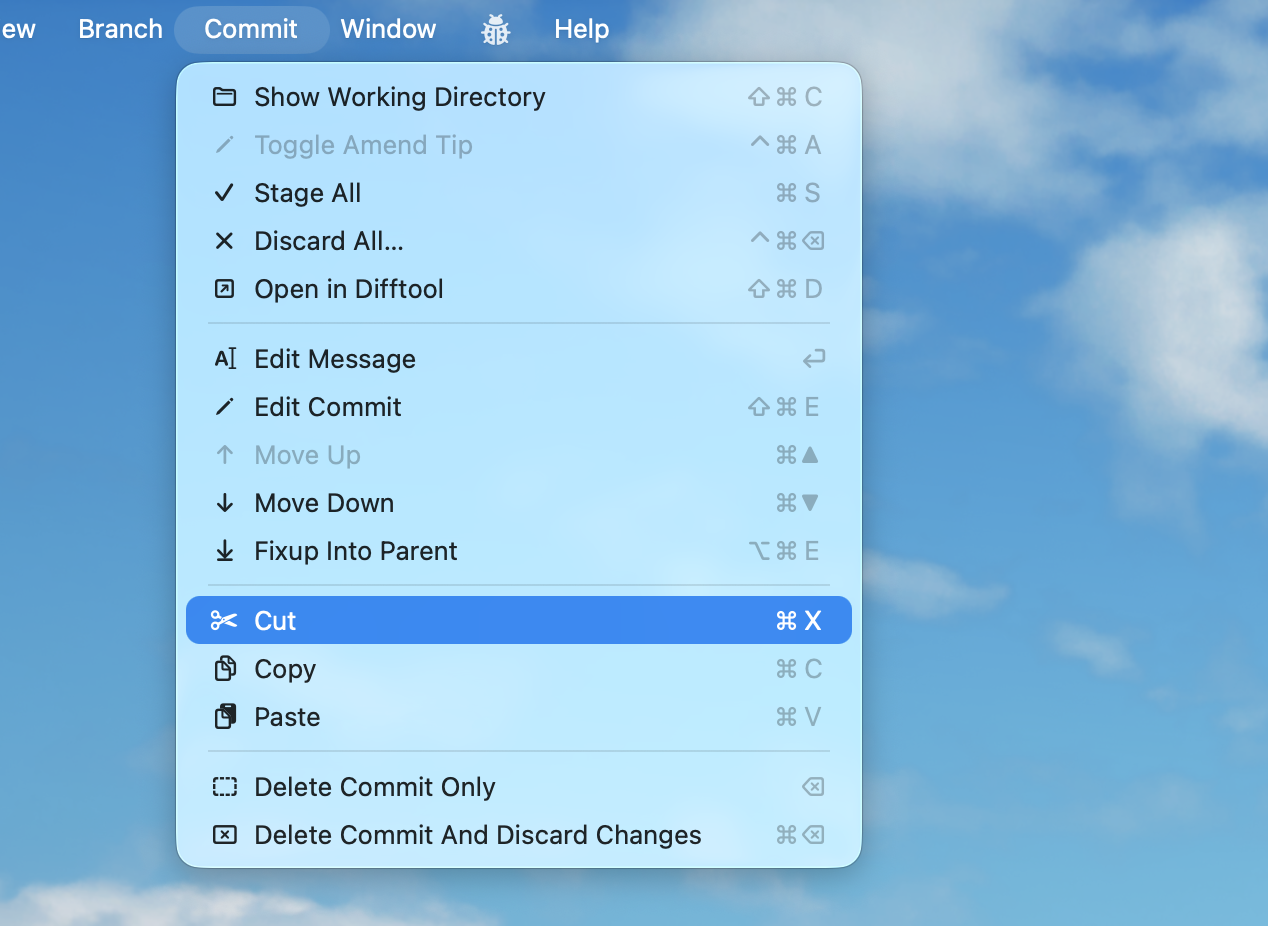
The standard Cut/Copy/Paste items, duplicated in the Commit menu.
Placing a copy of the clipboard commands in the Commit menu, while unusual, sends a clear message: these operations apply to commits. With this, Retcon’s first cherry pick interface was complete. As you read at the start, though, it did not fare well with experienced users. Why not?
Trapped in domain knowledge
My developer friends, tasked with cherry picking, scanned the menus for the words “cherry pick”. It’s that simple: they knew the terminology, and so that’s what they looked for1, and did not find. Interestingly, one of them did find the copy/paste commands once I gave them a clue (“have another look in the Commit menu!”), while the other, with the same indication, still found nothing. That’s how strongly they associated the domain-specific term with the action.
On the other hand, my mom, equipped with no Git-specific knowledge, was free to think more flexibly. Need to copy something from A to B, while not being able to see source and destination at the same time? That’s what the clipboard is for. There, done. The answer came perfectly naturally.
By choosing a less specialized, more widely understandable metaphor for the action, I both made the feature more accessible to people without any domain knowledge, and less intuitive to those with domain knowledge. What I expected to be a pure improvement to usability, wasn’t2.
Dumbing it up
That initial approach had turned out to be too subtle, and needed fixing. I very much wanted to keep the flexibility and approachability of the copy-paste model, but needed to also make its presence clear to experienced users. My first attempt was tragically inelegant, if effective:
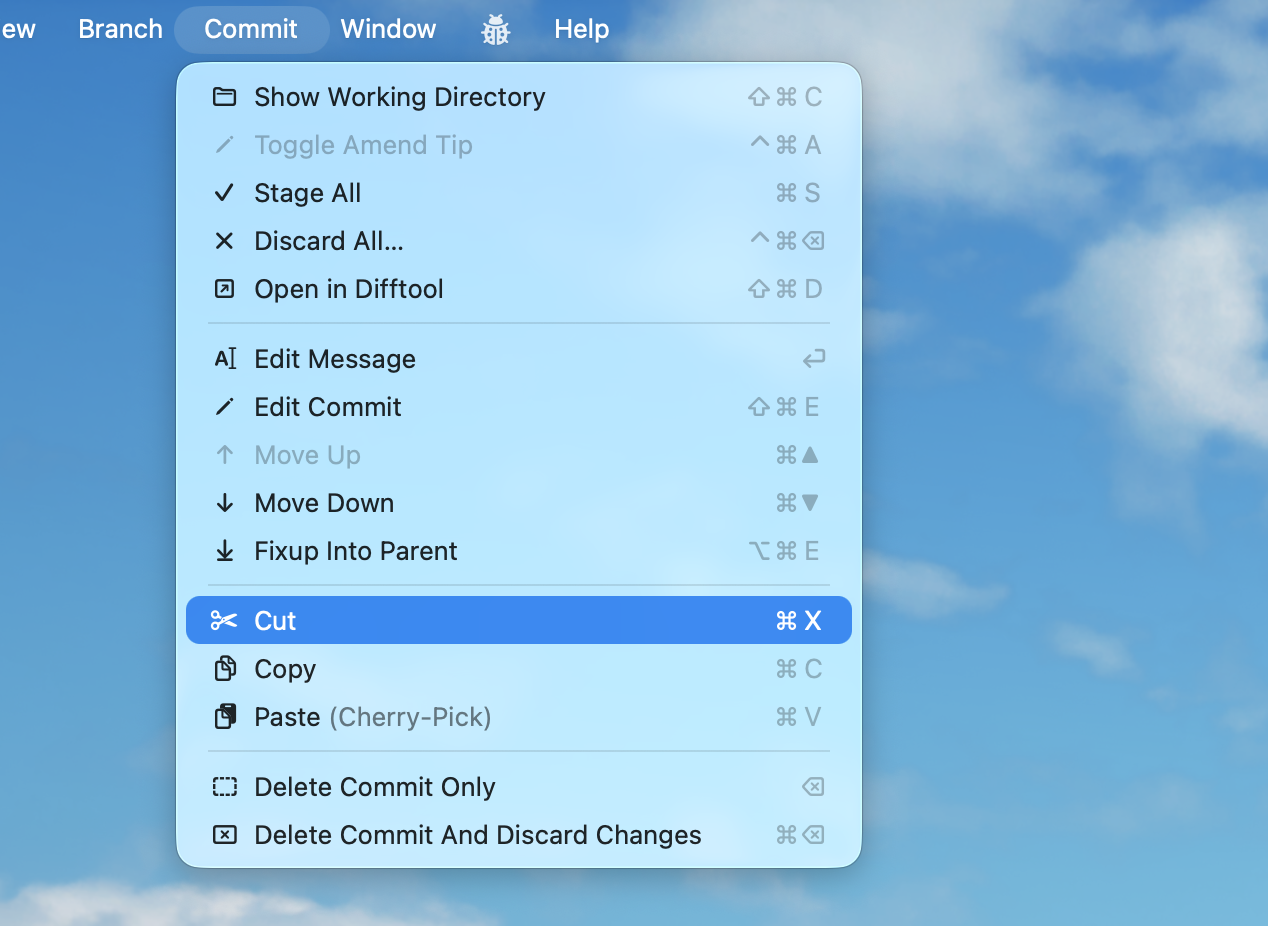
The Paste item now has a suffix.
This works — anyone looking for the term of art will indeed find it — but the Paste command now looks way, way too conspicuous. It’s extremely rare for menu items to have a suffix that looks like that, which raises questions. Is this menu special? Does it have some sort of secondary action that can be invoked somehow? Or is cherry picking currently disabled for some reason? That solution felt like it would indeed achieve its goal of calling attention to the command, but that it’d cause confusion in the process.
Having run out of ideas, I had resigned to ship this problematic-but-better-than-nothing implementation, until finally, it struck. A way to label a group of menus? That’s a submenu!
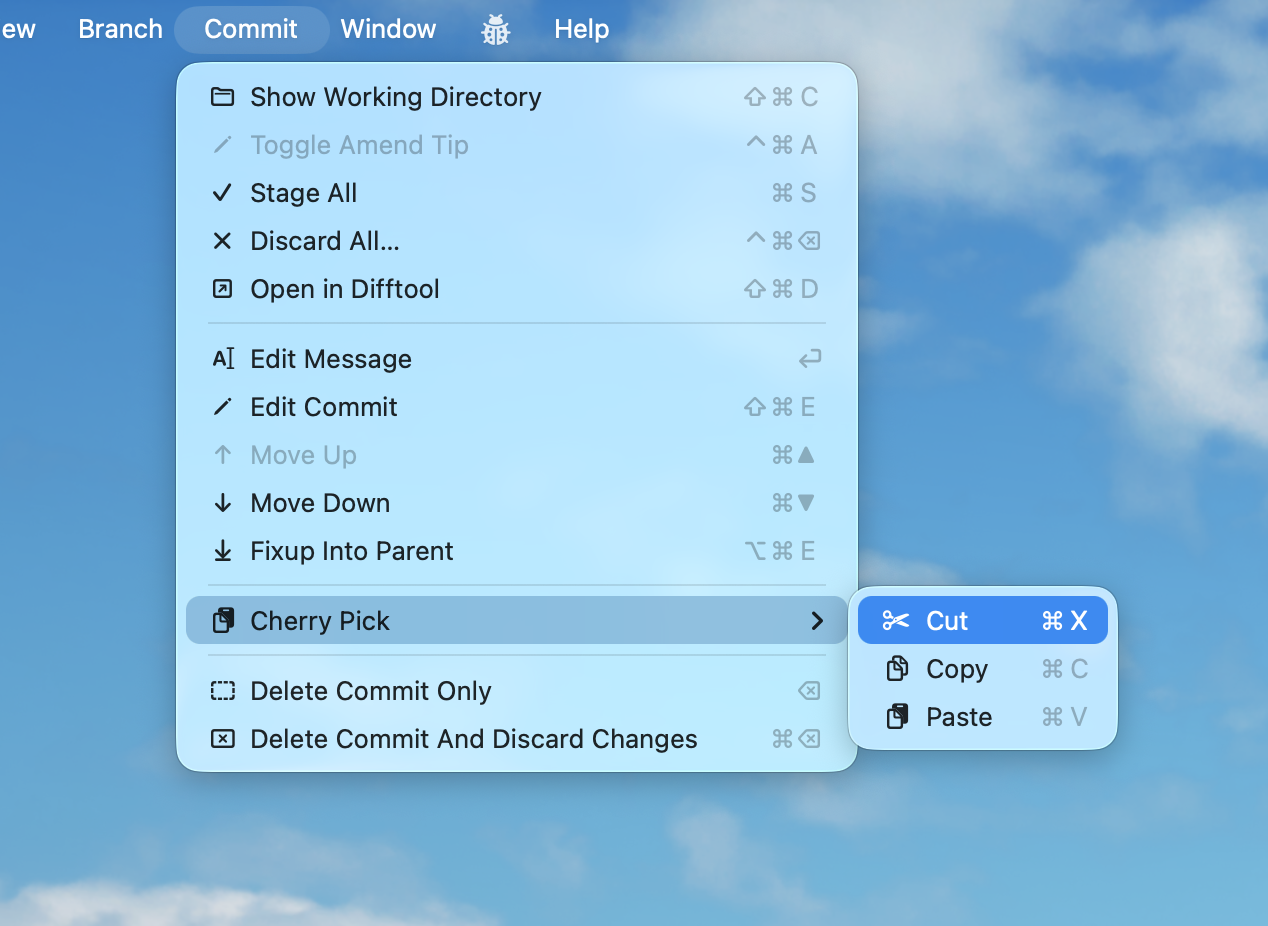
The Cut/Copy/Paste commands, lovingly nestled in a submenu.
A submenu! Of course! I sent excited, celebratory messages to many friends at that point.
The submenu approach has it all. There’s no attention-grabbing suffix; on the contrary, the three options are tucked away, which appropriately de-emphasizes them (I don’t expect people to ever use the menus to cherry pick; they’re just here to teach about the feature3). The nesting reinforces the message that these actions work together. And, most importantly, the submenu’s name does a perfect job of both explaining what the options are for, and of guiding those who look for that specific term. Hurray!
This submenu is what shipped in Retcon 1.6, and so far, no one’s asked where the cherry picking button was.
-
Admittedly, by telling my friends to “test cherry picking in this beta build”, I made them think of the term; maybe they’d have succeeded at the task if I’d given them higher-level instructions, like I did with my mom. Arguably though, all I did was unwittingly set up a worst-case scenario that would have occurred in the wild anyway. ↩︎
-
This isn’t the first time I run into this pro/novice tension. After all, I’m always looking to improve on Git’s existing metaphors, workflows, and terminology; that’s the whole reason Retcon exists! Lots of GUIs offer history rewriting already, but none comes close to Retcon’s speed and ease of use, because they’re all shackled to the Git command line’s model.
One previous example was the word “fixup”. It’s completely opaque: you really can’t guess what it means, you have to experiment, or look it up. But no alternative I could find ever worked. “Flatten” is just as mysterious. “Combine”, “join” and “fuse” seem to imply more than what a fixup actually does. Most vexing of all, the one verb that perfectly describes the operation is already taken: “merge”. In the end, the term of art won, and it’ll keep confusing beginners, even those expecting better from Retcon. ↩︎
-
App menus have a fascinating dual role as both interactive buttons, and passive documentation. They’re a hugely under-appreciated part of the modern GUI. I hope to write about them in the future. ↩︎